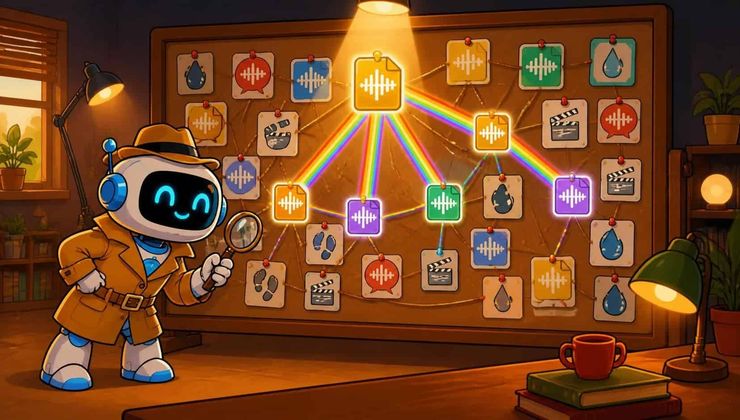
Chromaprint is fast. It finds re‑encoded tracks and different bitrates reliably. Essentia HPCP is the specialist for harmonic similarity—it finds covers and live recordings. But both of them share a blind spot: they rely on pitch and frequency structure that simply doesn’t exist in spoken word, podcasts, voice memos, or sound effects.
That’s where Meyda MFCC reverse audio search comes in. Instead of spectral energy or harmonic pitch, it measures timbral texture—the perceptual “colour” of sound. It captures what makes one person’s voice recognisably different from another’s, or what makes a footstep sound like a footstep regardless of the recording quality.
For voice recordings, podcasts, and sound effects, Meyda MFCC is the algorithm that finds the copies the others miss—and with reverse search, you upload one reference file to find every timbrally similar copy in a folder.
How reverse audio search is different
The standard Find Duplicate Audio (Meyda MFCC) workflow scans a folder and compares every audio file against every other file. That’s O(n²) complexity—fine for a few hundred files, but it gets slower as the folder grows.
Reverse Audio Search does something much smarter. It extracts MFCCs from your reference once, then compares each folder file only against that reference. That’s O(n) complexity—linear scaling. A folder of 10,000 files takes roughly the same time per file as a folder of 100. The scan speed depends only on the number of files, not how many of them are similar to each other.
This makes reverse search the faster choice for large folders where you already know what you’re looking for.
The reference protection system
The reference file is treated differently from every other file in the scan. When you upload it, Sakarto immediately:
- Extracts 13 MFCC coefficients from the first 10 seconds of the audio
- Shows a built-in audio player so you can verify the right file was loaded
- Pins it at the top of the results as soon as scanning starts
- Displays a blue REFERENCE badge on the card
- Prevents it from being moved or deleted—the Move and Delete buttons are disabled on the reference card
This last point is critical. If you’re using reverse search to find copies of a file you want to keep, you don’t want to accidentally delete the original. The reference protection system makes that impossible.
How the Meyda MFCC reverse search algorithm works
Both the duplicate finder and this reverse search use the same Meyda.js MFCC pipeline. The difference is what gets compared to what: here, every folder file is compared against your reference only—not against each other.
Step 1: Load Meyda.js and process the reference file immediately
When you select your reference audio, Sakarto processes it right away using Meyda.js—decodes the first 10 seconds at 22,050 Hz, splits into 512-sample frames (hop 256), and extracts 13 MFCCs per frame via Meyda.extract("mfcc", frame). A preview player appears so you can confirm you chose the right file.
Step 2: Decode each folder file at 22,050 Hz, first 10 seconds only
For each audio file in the folder, the browser decodes the first 10 seconds at 22,050 Hz. Only the left channel (channel 0) is used. Files over 100 MB are skipped. The reference file itself is skipped if it also appears inside the scanned folder (matched by name + size + date).
Step 3: Extract MFCCs for each folder file
Each folder file’s 10-second sample is split into 512-sample frames (hop 256). For each frame, Meyda.extract("mfcc", frame) computes 13 Mel-Frequency Cepstral Coefficients by mapping the spectrum to the Mel scale, taking the log, and applying a Discrete Cosine Transform.
Step 4: Align sequences and compute average Euclidean distance
The shorter of the two MFCC sequences determines the alignment length. For each corresponding pair of 13-element vectors, the Euclidean distance is computed—measuring the straight-line distance between the two points in 13-dimensional MFCC space. These per-frame distances are averaged to produce a single distance value for the file pair.
Step 5: Apply threshold and duration pre-check
A duration pre-check first rejects any folder file shorter than 50% of the reference duration. For the remaining files, if the average Euclidean distance is at or below the threshold set by the slider, the file is added to the results list as a match. Files above the threshold are silently skipped.
Step 6: Reference pinned first, matches shown after full scan
Unlike the duplicate finder (which shows groups live), reverse search completes the full folder scan first, then displays all matches together. The reference card is pinned at position 0 with a blue REFERENCE badge. All matching files appear after it. The result count shows how many similar files were found.
What Meyda MFCC reverse search finds well
| Type of duplicate | How well it works | Why |
|---|---|---|
| Your reference podcast at different bitrates (320k vs 128k MP3) | ✅ Excellent | Bitrate changes affect quality but not overall timbral shape. |
| The same voice recording at different bitrates | ✅ Excellent | MFCCs capture voice timbre; same speaker = similar MFCCs. |
| Lossless vs. lossy exports of the same audio (WAV vs MP3) | ✅ Good | Timbral envelope is preserved across reasonable compression levels. |
| Sound effects saved in multiple formats or quality levels | ✅ Excellent | Footsteps, rain, applause—each has a consistent timbral signature. |
| The same speaker re-recorded in the same room | ✅ Very Good | Room acoustics contribute to timbral texture. |
| Re-encoded copies with similar timbral character | ✅ Good | MFCCs are relatively stable across encoding differences. |
| Covers or re-performances of songs | ❌ Poor | Different performers = different timbre. Use Essentia HPCP. |
| Transpositions or pitch-shifted recordings | ⚠️ May struggle | MFCCs are pitch-sensitive to some degree. Chromaprint may be better. |
| Recordings where similarity only starts after the 10-second mark | ⚠️ May struggle | Meyda only analyses the first 10 seconds. Use Chromaprint for full-track analysis. |
Understanding the MFCC Distance Threshold slider
The MFCC Distance Threshold slider (5–50) controls how closely folder files must match your reference to appear in results. Lower values are stricter. Adjusting after a scan re-filters results instantly without re-scanning.
| Threshold range | What it does | When to use |
|---|---|---|
| 5–10 (Very strict) | Only nearly identical timbral profiles match. Very few false positives. | Finding exact duplicates and same-voice recordings with minimal processing. |
| 11–25 (Balanced) | Catches re-encoded versions, different bitrates, and recordings with similar vocal timbre. | Default and recommended. The default of 15 is a good starting point for spoken-word and podcast searches. |
| 26–50 (Loose) | Groups files with broadly similar timbral character. Useful for finding all recordings from the same room or microphone. | If you’re missing matches that share timbral character but differ in content. Expect more false positives. |
Tip: Start at 15. If you see unrelated files grouped together (false positives), lower the threshold toward 8–10. If expected matches are not appearing, raise it toward 20–25.
How to use reverse audio search: step by step
Step 1: Select your reference audio file
Click Choose Reference Audio in the left panel. Select any audio file from your computer. Sakarto processes it immediately using Meyda.js—a preview player with the green art background appears so you can play and confirm you chose correctly. Only the first 10 seconds are processed, so this is near-instant.
Supported formats: MP3, WAV, FLAC, OGG, M4A, AAC. Files over 100 MB are not supported as reference files.
Tip: The reference file does not need to be inside the folder you’re about to scan. Sakarto skips it automatically if it also appears inside the scanned folder (matched by name + size + date).
Step 2: Select the folder to search
Once a reference file is loaded, Choose Folder to Search becomes active. Click it to open a native folder picker (Chrome / Edge). Or drag and drop a folder directly onto the page. The folder count shows how many files were found. The Start Search button activates only when both a reference file and a folder are selected.
Step 3: Start the search
Click 🔍 Start Search. A progress bar shows how many files have been processed. Audio processing runs fully in the background—you can switch browser tabs freely without pausing the scan.
Once the scan completes, the reference card appears at position 0 (blue REFERENCE badge) followed by all matching files sorted by closeness to the reference. The result count shows how many similar files were found.
Step 4: Adjust the MFCC Distance Threshold
Use the MFCC Distance Threshold slider above the results to tune sensitivity. Releasing the slider re-filters results instantly without re-scanning. Start at the default of 15 and adjust based on results.
Step 5: Listen and review results
Every card has a built-in player. Use it to listen and confirm similarity before taking action. Playing one track automatically pauses all others.
- Click a card to select it (blue border)
- Ctrl+Click (Cmd+Click on Mac) to add to the compare list (purple border)
- Click the 🔍 icon on hover to open full-size preview with a modal player
- Right-click any card for the context menu (Move/Delete disabled on the reference card)
- Click & drag on empty space to box-select multiple match cards
Step 6: Compare reference vs. match side-by-side
Ctrl+Click the reference card and one or more match cards, then click ⚖️ Compare. A modal opens with a player per file, full metadata (duration, size, type, path), and a similarity percentage. For 3+ files, a pairwise similarity matrix is shown.
The reference card in the compare modal shows only a Copy Name button—no Move or Delete—to keep it protected.
Step 7: Act on matches—Move or Delete
Select match cards (not the reference—it’s protected) and use the toolbar. With Queue Mode on (recommended), files are staged first:
- 📋 Copy — copy filename(s) to clipboard
- 📂 Move — stage for move to Audio-Duplicates folder
- 🗑️ Delete — stage for permanent deletion
- ⚖️ Compare — listen and view metadata side-by-side
Warning: Deletions are permanent. The File System Access API bypasses the recycle bin. Always use Queue Mode to review before executing. The reference file cannot be deleted or moved.
Step 8: Queue Mode—review before you commit
With Queue Mode enabled (default), clicking Move or Delete stages files in the Move Queue or Delete Queue tab. Switch to those tabs in the sidebar, listen to each file, remove any you change your mind about, then execute. The default destination folder is Audio-Duplicates, created inside your scanned folder.
When to use Meyda MFCC reverse search vs. the other 2 audio algorithms
Sakarto gives you three audio algorithms for reverse search. Each one measures a different property of sound and is better suited for different types of audio.
Chromaprint — spectral fingerprinting for re-encoded tracks
Chromaprint is pure-JavaScript spectral fingerprinting. It captures the overall “shape” of sound—which frequency bands are louder than others. It finds re-encoded tracks, different bitrates, and format conversions with no CDN dependencies.
Use Meyda MFCC reverse search instead: You’re working with speech, podcasts, or sound effects. Chromaprint measures spectral energy shape, which can vary significantly across different speakers or sound effects. MFCC measures timbral texture, which is more stable for voice and non-musical audio.
Essentia HPCP — harmonic content for music
Essentia HPCP uses Essentia.js WebAssembly to compute a 12-bin Harmonic Pitch Class Profile. It measures which musical notes are present—not the sound of the instruments. It finds cover versions, live recordings, and alternate arrangements.
Use Meyda MFCC reverse search instead: Your audio doesn’t have strong harmonic content. Speech, podcasts, and sound effects produce near-random HPCP vectors because there’s no clear pitch structure. MFCC captures the timbral texture that HPCP ignores.
Meyda MFCC — timbral texture for speech and sound effects
Meyda MFCC is the specialist for voice, speech, podcasts, voice memos, and sound effects. It extracts 13 Mel-Frequency Cepstral Coefficients using Meyda.js—the same features used in speech recognition systems.
Use Meyda MFCC reverse search when: You have one reference voice recording, podcast episode, or sound effect and want to find every timbrally similar copy in a folder. It’s the only algorithm that reliably matches speech and non-musical audio.
Algorithm quick reference
| Algorithm | Best for | What it measures | External library | Threshold direction | Speed | Window |
|---|---|---|---|---|---|---|
| Chromaprint | Re-encoded tracks, different bitrates, format conversions | Spectral band energy shape | None—pure JS | Lower = stricter | Fastest | Full track |
| Essentia HPCP | Cover versions, live recordings, harmonic similarity | Musical pitch class content | Essentia.js (CDN) | Higher = stricter (inverted) | Moderate | Full track |
| Meyda MFCC | Speech, podcasts, voice memos, sound effects | Timbral texture (spectral envelope) | Meyda.js (CDN) | Lower = stricter | Fast | First 10 seconds |
Privacy: your files never leave your device
Like every Sakarto tool, the reverse audio search runs entirely in your browser:
- Only Meyda.js loads from the network. One script file loads from cdn.jsdelivr.net at page load. After that, all audio decoding and MFCC computation run locally. Open DevTools → Network tab during a scan: zero outbound requests.
- No accounts, no cookies, no analytics. The only localStorage data is your Queue Mode preference. No file names, paths, or MFCC data are ever saved or transmitted.
- Folder access is scoped and session-only. Permission covers only the folder you selected, lasts only while the tab is open, and can be revoked from browser site settings at any time.
- Purely static—no backend. Sakarto is HTML, CSS, and JavaScript. There is no server-side component, database, or API endpoint receiving any data from you.
Frequently asked questions (Meyda MFCC reverse search specific)
“Does my reference file need to be inside the folder I’m scanning?”
No—pick it from anywhere on your computer. If it also exists inside the scanned folder, Sakarto detects and skips it automatically using filename, file size, and last-modified date matching. The reference card is always pinned at position 0 as a separate element and is never treated as a scan result, even if Sakarto finds an identical file in the folder.
”Meyda only analyses 10 seconds—what if my reference and the copies sound different in the opening?”
This is the main edge case to watch for. If your reference has an atypical intro—a jingle, intro music, or silence before the main content—and the copies in the folder jump straight to the main content, the MFCC profiles of their first 10 seconds will differ even though the rest of the audio matches. In this case, the match may not appear. The practical fix is to use a reference file that starts with the characteristic content you’re looking for—trim the intro if needed, or switch to Chromaprint which analyses the full track and is more resilient to intro differences.
”My reference is a podcast episode. How do I find all the copies in different formats in my folder?”
Meyda MFCC is the best algorithm for this use case. Use a threshold of 10–15 for strict matching (re-encodes of the exact same episode in different formats) or 18–22 if you want to also catch copies with slight audio processing applied. Make sure the reference starts with the actual podcast content rather than a long intro jingle. If the folder copies have very different bitrates (<96 kbps), try raising the threshold to 18–20 to account for the extra compression artifacts in their MFCC profiles.
”The same recording in WAV and MP3 isn’t matching my reference. What should I try?”
Raise the MFCC Distance Threshold slider toward 18–22. MP3 compression modifies the spectral envelope slightly, which affects the MFCC coefficients. A threshold of 15–20 covers most lossless vs. lossy pairs. Also check both files have similar duration to the reference—the duration pre-check excludes files shorter than 50% of the reference length. If the format is heavily compressed (below 96 kbps), you may need a threshold as high as 25.
”No matches found even though I can hear copies of my reference in the folder. What should I check?”
Work through this checklist: first, raise the threshold gradually from 15 toward 25–30. Second, check that candidate files have similar duration to the reference (the pre-check excludes files shorter than 50%). Third, check whether the reference starts with representative content or an atypical intro—only the first 10 seconds are compared. Fourth, consider whether the copies sound similar to the reference only in pitch or melody rather than timbre: Meyda MFCC matches timbral texture, not musical notes. If the copies are musically similar but played on different instruments, try Essentia HPCP. For full-track spectral matching, try Chromaprint.
”What kind of reference file works best with Meyda MFCC?”
A clean recording that starts with the characteristic sound you’re searching for. Voice recordings work best when the speaker starts speaking within the first second or two. For sound effects, use the full effect without long silence before it. Avoid reference files with long intro jingles or music beds before the main content if you want to match copies that don’t have those elements. Format-wise, higher quality (lossless or high-bitrate) produces cleaner MFCC coefficients, but the algorithm is tolerant enough that a good 192k or 256k MP3 reference works well in practice.
”Why does the reference player appear before I’ve picked a folder?”
Meyda processes the reference audio immediately on upload—extracting its 13 MFCC coefficients from the first 10 seconds straight away. The player appears so you can confirm the right file was selected and listen to the first 10 seconds that will be used as the matching fingerprint. The fingerprint is fully computed and ready before you select a folder, so scanning begins immediately once you pick one.
”Can I find copies of a sound effect reference file using Meyda?”
Yes—sound effects are a strong use case for Meyda MFCC. The timbral texture of a sound effect (footsteps, rain, door slam, etc.) is captured well by MFCCs and stays consistent across different export formats and quality settings. Use a threshold of 10–15 for strict matching. One caveat: very short sound effects under 2 seconds produce sparse MFCC data from only a few frames, which can make matching less reliable. For very short clips, Chromaprint may give more consistent results.
”Can I recover files after deleting them?”
No. Sakarto’s remove() call via the File System Access API permanently deletes files without going through the OS Recycle Bin. The reference file is fully protected and can never be deleted or moved regardless. For matched files, always use Queue Mode: stage them, play each one in the built-in player, compare it against the reference in the Compare modal, and only execute the deletion when you’re certain it’s a true copy you no longer need.
Final thoughts
Meyda MFCC reverse search is the algorithm you reach for when you need to find audio duplicates based on timbral texture rather than spectral shape or harmonic pitch. It’s not for finding re-encoded music—Chromaprint is faster and more reliable for that. It’s not for finding cover versions—Essentia HPCP is the specialist for harmonic similarity. But for speech, podcasts, voice memos, and sound effects, Meyda MFCC reverse search is the only algorithm that reliably works.
It’s particularly effective for:
- Podcast archives. Find all copies of a specific episode in a folder.
- Voice memo libraries. Find duplicate recordings of the same person speaking.
- Sound effects collections. Find all instances of the same effect at different quality settings.
- Audio forensics. Match a voice sample to other recordings of the same speaker.
- Spoken-word content. Audiobooks, lectures, interviews, and dictation.
Where Meyda MFCC falls short—music, covers, and harmonic similarity—other Sakarto algorithms fill the gap. Use Chromaprint for spectral matching and Essentia HPCP for harmonic similarity.
But for voice, speech, and sound effects, Meyda MFCC is the tool that finds the copies the others miss.
Ready to find every timbrally similar copy of your reference audio?
- Open Meyda MFCC Reverse Audio Search — best for speech, podcasts, and sound effects
- Try Chromaprint Reverse Audio Search — fastest, no CDN, great for re-encoded music
- Try Essentia HPCP Reverse Audio Search — best for covers and live recordings
- Find Duplicate Audio (Meyda MFCC) — scan a whole folder without a reference